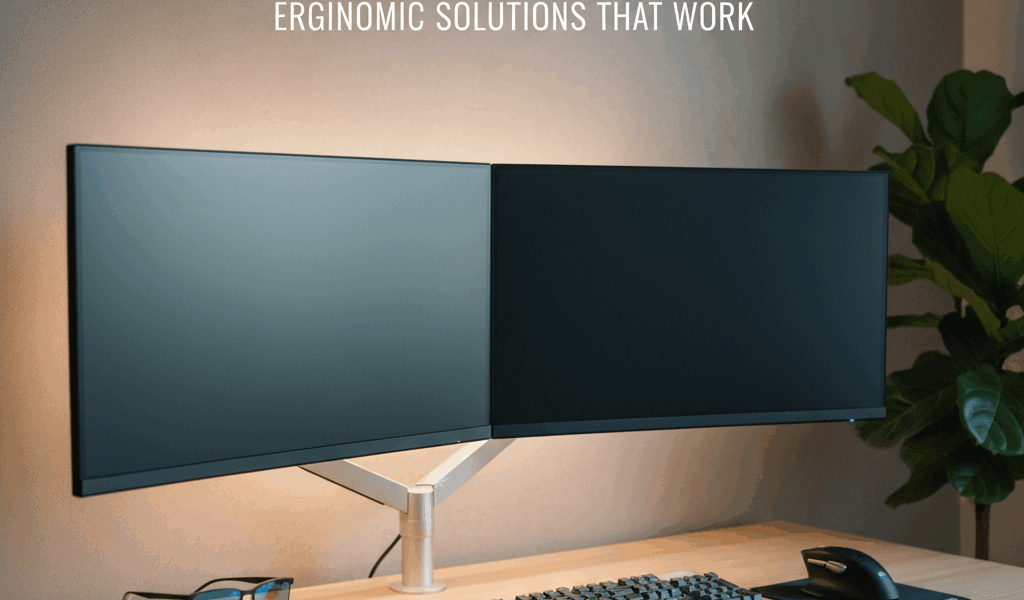
Monitor eye strain has gotten weirdly complicated, with everyone recommending different specs, color profiles, and blue light apps that contradict each other. As someone who spent three years doing it wrong — bigger, brighter, more expensive — I learned everything that actually matters about picking a screen that doesn’t destroy your eyes by lunch. Today I’ll share all of it.
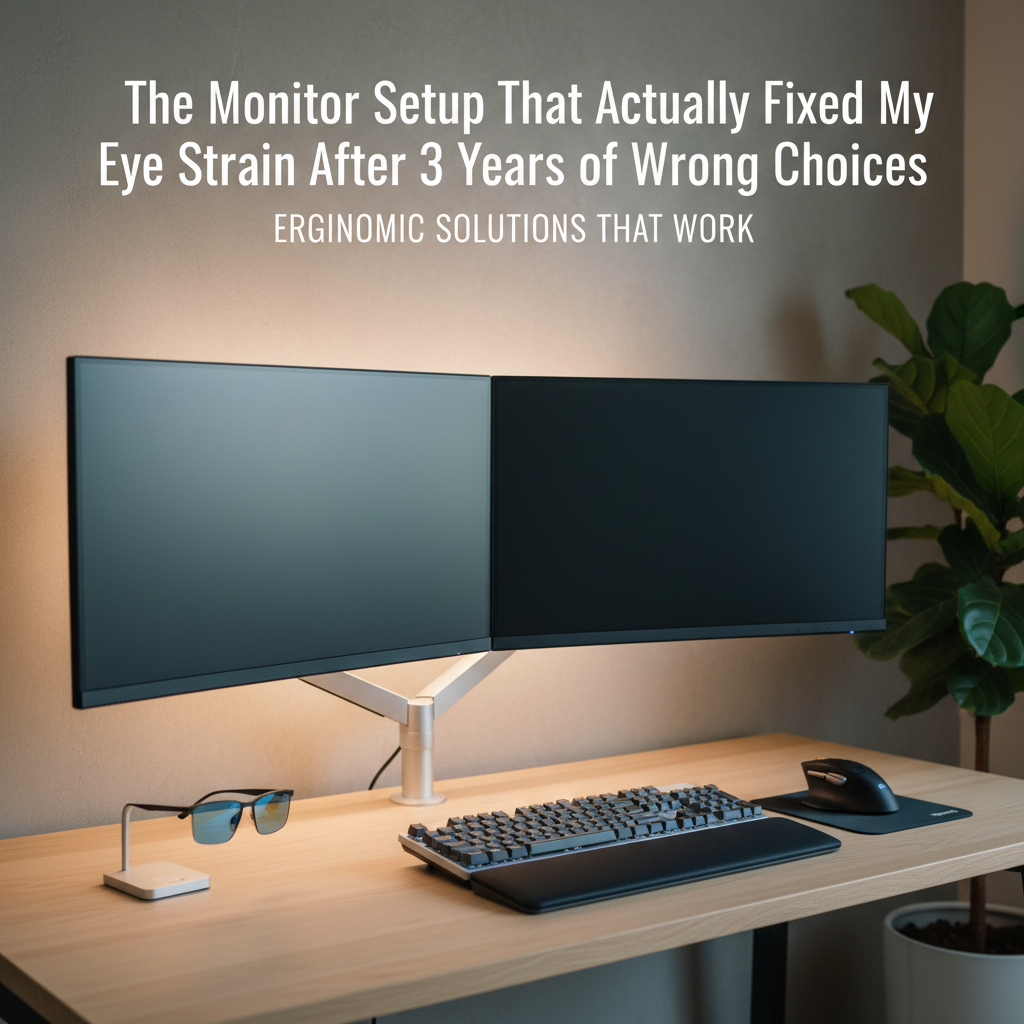
By noon every day I was squinting, rubbing my eyes, and popping ibuprofen by 2 PM. The problem wasn’t my eyes. It was my screen. Here’s what changed.
What’s Actually Hurting Your Eyes
Before you buy anything, understand what’s working against you. It’s almost never the resolution — that’s the easy thing to blame. The real culprits are less obvious.
Flicker. Most budget monitors use PWM (pulse-width modulation) to control brightness. That means the backlight is technically strobing hundreds of times per second. Your conscious brain can’t detect it, but your eyes absolutely can. “Flicker-free” on the spec sheet isn’t marketing — it’s a real engineering choice and it makes a real difference.
Blue light output. Every LCD monitor blasts high-energy blue light directly at your face all day. Hardware-level blue light reduction is different from a software filter — software filters shift your color balance and can introduce their own visual fatigue. Hardware reduction doesn’t distort anything.
Glare and reflections. Glossy screens look gorgeous in stores. After a few weeks in an office with any ambient light behind you, they become exhausting. A glossy display bounces that light directly into your face while you’re trying to read.
Distance and size mismatch. Quick note before I keep going. Most people sit too close to large monitors. The 20/20/20 rule — every 20 minutes, look at something 20 feet away for 20 seconds — helps, but getting the physical distance right prevents strain before habits even come into play.
The Monitor That Actually Fixed It: LG 27UN850-W
Spent four months testing different setups, different panels, different lighting. What I landed on was the LG 27UN850-W, a 27-inch 4K IPS, and the difference was immediate enough that I noticed it the first afternoon.
The IPS panel gives you accurate color from wide viewing angles, which sounds like a color-nerd feature but matters practically — your eyes aren’t constantly re-adjusting as you shift position in your chair. The matte anti-glare coating kills reflections without the color-washing that cheap matte panels add. And the flicker-free backlight with hardware blue light reduction means you’re not fighting the screen’s own engineering all day.
At 27 inches and 4K, text is sharp enough that you can sit back a real distance without squinting. That few extra inches of physical separation makes a cumulative difference over eight hours that’s hard to overstate until you’ve experienced it. One USB-C cable handles data, display, and 96W laptop charging simultaneously — fewer cables is a genuine, underrated win.
Price runs $350–$400. Not cheap, but well short of the $800+ that most enthusiast review sites demand before they’ll recommend anything.
The Runner-Up: Dell UltraSharp U2722D
If the LG is sold out or you catch the Dell on a better sale, the UltraSharp U2722D is the other one I’d put money on. It’s 27-inch QHD rather than 4K — perfectly sharp at normal desk distances — with Dell’s ComfortView Plus hardware blue light reduction that doesn’t mess with color accuracy.
I’m apparently someone who notices desk cable clutter, and the Dell’s stock ergonomic stand is legitimately excellent: full tilt, swivel, pivot, and height adjustment without needing a VESA arm. With the LG you’ll want to budget $40–$50 for an aftermarket arm. With the Dell, the stock stand does the job.
Current pricing usually lands around $300–$350. That’s what makes it endearing to people in this category — it delivers the same core features at a slightly lower entry point.
The Part Nobody Mentions
The monitor itself is half the solution. Where you put it is the other half.
Your eyes should be level with the top third of the screen, not the center. Most people’s monitors are too low, which means they’re angled down all day — neck strain that feeds back into headaches and eye fatigue. An Ergotron LX arm costs $45–$60 used on eBay and is worth every dollar of it.
Keep the monitor at arm’s length — touch your fingertips to the screen, that’s the minimum distance you should be sitting. Match your screen brightness to the ambient light in your room. If your monitor is noticeably brighter than the walls around it, your eyes are compensating for that mismatch all day.
What I’d Skip
Curved monitors add nothing for productivity or eye strain — they’re designed for gaming immersion and the curve becomes mildly distracting during document work. Ultrawide monitors can actually increase strain because you’re moving your head more to cover the width. High refresh rates (144Hz, 165Hz) are irrelevant for office use and often come with more PWM flicker, not less.
If eye strain is your problem: LG 27UN850-W, Ergotron LX arm, brightness matched to your room, monitor at arm’s length. Give it two weeks. The midday headaches tend to disappear faster than you’d expect.



Leave a Reply